Blackout Dates
Last reviewed: 2026-08-10
On this page
A blackout date closes your entire store for a day or a range of days. Nothing can be booked on those dates: not a single service, not a single team member, not a single location. Use it for public holidays, a shop-wide vacation, a seasonal closure, or any day you simply don't want to take bookings.
This is the fastest way to close everything at once. If you only need to close one service or one person's calendar, use blocking off time and days instead.
Where to find blackout dates
- Go to the Availabilities page in the app.
- Click the Blackout Dates tab.
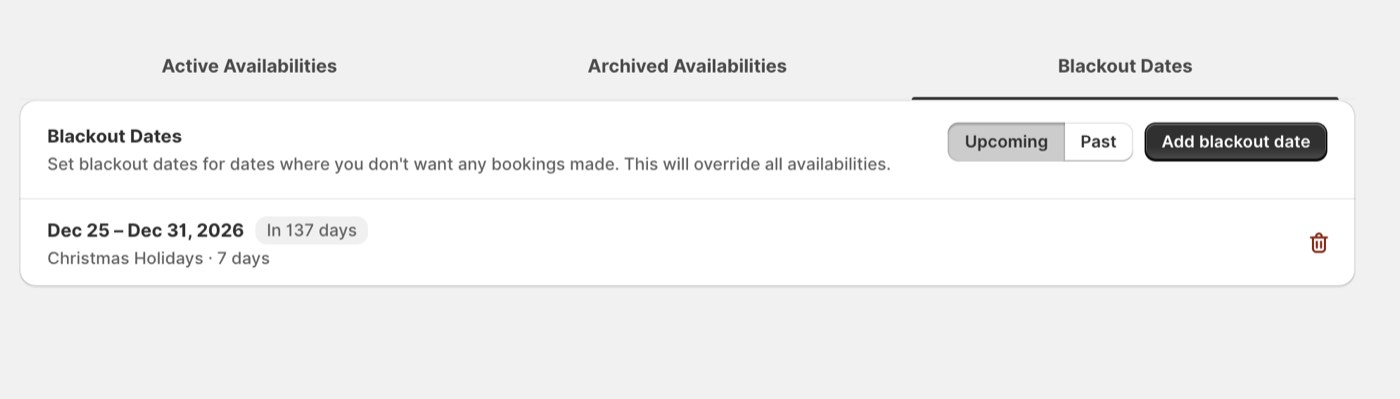
You'll see every range you've blocked, split into an Upcoming and a Past view.
Adding a blackout date
- On the Blackout Dates tab, click Add blackout date.
- Pick a single day, or click a start date and then an end date to close a whole range.
- Optionally add a Reason, like "Summer closure" or "Thanksgiving".
- Check the summary at the bottom of the window. It shows the exact dates and how many days will be closed.
- Click Block dates.
The dates take effect right away. Customers browsing your booking calendar will no longer see any times on those days.
The reason is only visible to you and your staff. Customers never see it, so write whatever helps you recognize the closure later.
You can block dates up to 24 months ahead. Past dates can't be selected, since there's nothing left to block.
What a blackout date blocks
A blackout overrides everything else in the app. On a blacked-out date:
- Every service and event stops showing times, no matter how its availability is set up.
- Every team member is unavailable, including staff with their own schedules.
- Every location is closed.
- Point of Sale shows no available dates or times.
- Waitlist sign-ups return no times for that date.
- Customers can't reschedule an existing booking onto that date.
There's no way for a blackout to be worked around by an availability rule, a capacity rule, or a specific-date schedule. It always wins.
Blackout dates apply to the calendar date as your customer sees it. If you serve customers in several timezones, a blackout on December 25 means "December 25" for each of them, not a fixed block of hours.
Viewing upcoming and past closures
The Upcoming view shows every closure that hasn't finished yet, soonest first. Each row carries a status:
- Blocking now — the closure is running today.
- In 137 days — the closure hasn't started yet, and this is the countdown to its first day.
- Ended — the closure is over. These move to the Past view automatically.
Each row also shows the reason you entered and how many days the closure covers, like "Christmas Holidays · 7 days" in the screenshot above.
Removing a blackout date
Click the trash icon on the right of any row. The dates open back up immediately and your normal availability resumes.
There's no confirmation step, but a message appears at the bottom of the screen with an Undo button for a few seconds. Clicking Undo puts the same dates and reason back.
What happens to bookings you already have?
Adding a blackout date does not cancel bookings that are already on the calendar. It only stops new ones from being made.
Check the Bookings page for appointments on the dates you're about to close. Blocking the dates won't notify anyone. If you need those bookings cancelled or moved, do it yourself before you add the blackout, so customers get a cancellation or reschedule notice.
Blackout dates or a date override?
Both close time off, but they work at different levels:
- Blackout dates close the whole store. One entry, everything off. Best for holidays and vacations.
- Specific date schedules inside an availability close or change hours for just the services using that availability. Best for one staff member's day off, or shortening a single afternoon.
If you find yourself adding the same date override to every availability you have, use a blackout date instead.
Next steps
- Blocking off time and days — close a single service or a single afternoon
- Setting your availability — set the weekly hours a blackout overrides
- Lead time and booking limits — require notice and cap how far ahead customers can book